🏷️ Non-textual elements
Common mistake
A common mistake is leaving icons, images, and image buttons without any label, or assigning a generic one like
"image"or"button". For sighted users this is fine, because the visual context makes the meaning obvious. For users relying on a screen reader, however, hearing “image, image, image” as they navigate a screen gives them no useful information and forces them to guess or skip content entirely.
🎯 Relevant elements
This guideline applies to any element that conveys meaning visually but has no text of its own:
- Images (
Image,Image.asset,Image.network)- Icons (
Icon,ImageIcon)- Icon buttons (
IconButton)- Input fields / forms
- Custom painted or canvas-drawn elements
- SVG or lottie illustrations that carry informational meaning
WCAG Guideline
This guideline is based on WCAG 2.2 — 1.1.1 Non-text Content (Level A). All non-text content that is presented to the user must have a text alternative that serves the equivalent purpose.
It also relates to WCAG 2.2 — 2.5.3 Label in Name (Level A). When an interactive element has a visible text label, the accessible name must contain that visible text. This ensures that speech-input users who say the visible label can activate the control.
It also relates to WCAG 2.2 — 1.3.3 Sensory Characteristics (Level A). Elements must not be identified using sensory characteristics alone, such as shape, color, size, or position.
Solution
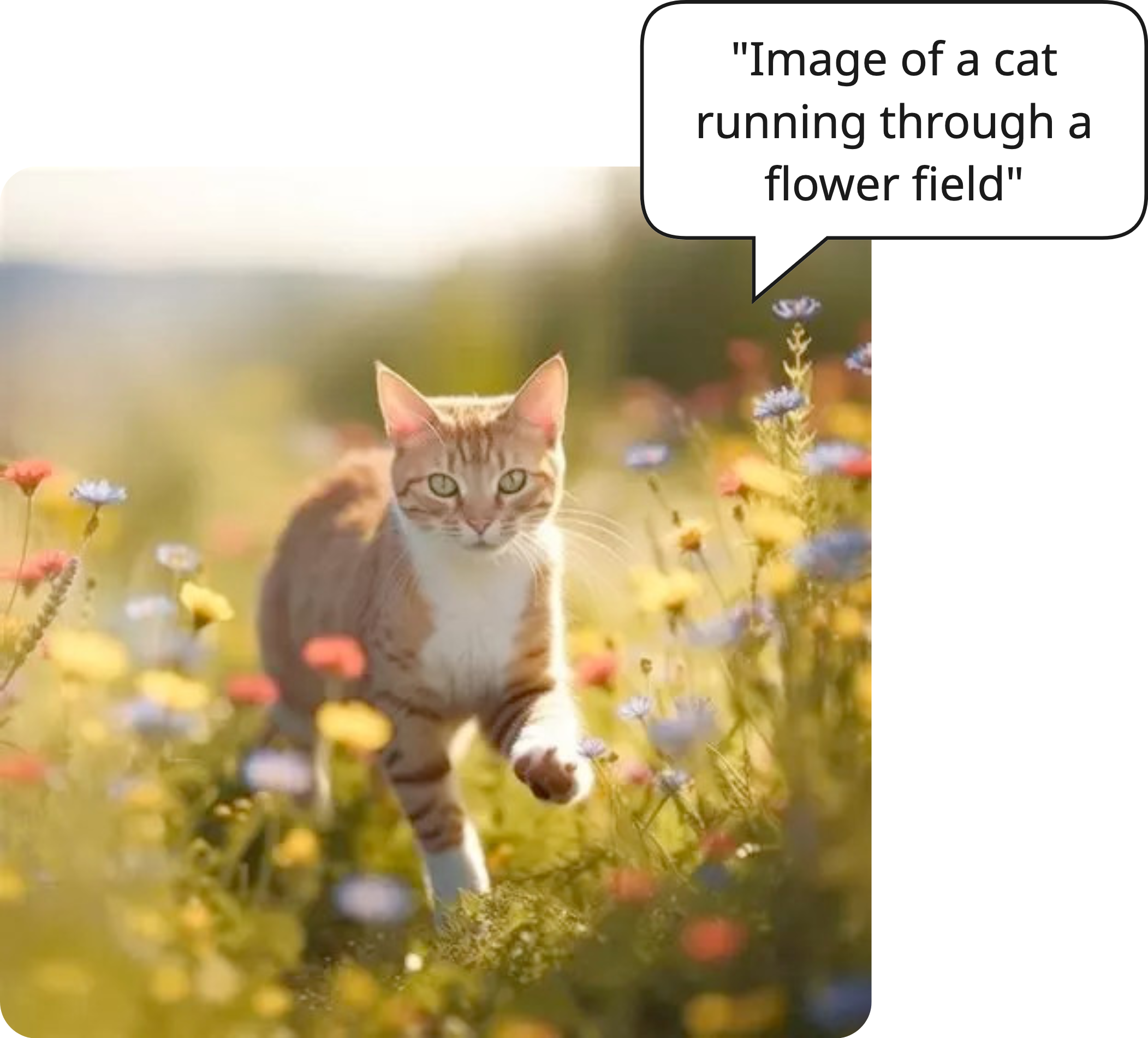
Use Flutter’s Semantics wrapper widget to add labels to non-textual elements via the semanticLabel attribute. Ensure the label is descriptive of the element’s content or function - don’t just say it is an image; describe what the image shows.
// ❌ Don't - no label, screen reader will just say "image"
Image.asset('assets/cat.png');


// ❌ Don't - add a non-descriptive label. Be clear in what the image is.
Semantics(
  label: 'Cat image',
  child: Image.asset('assets/cat.png'),
);

// ✅ Do - descriptive label tells the user what the image shows
Semantics(
  label: 'Image of a cat running through a flower field',
  child: Image.asset('assets/cat.png'),
);

// Some widgets support semanticLabel directly
Image.asset(
  'assets/cat.png',
  semanticLabel: 'Image of a cat running through a flower field',
);
| 👎 Don’t | 👍 Do |
|---|---|
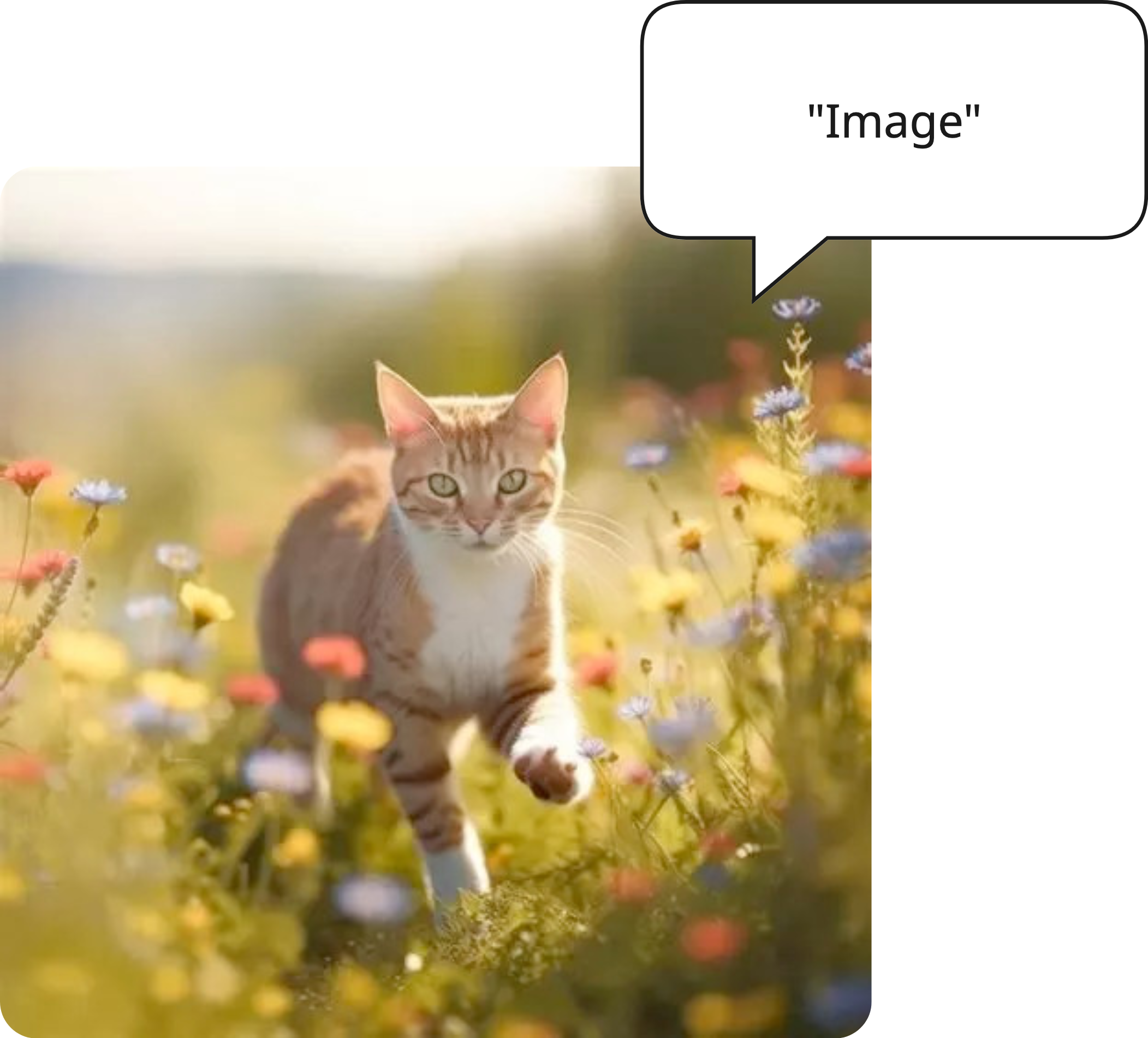 |  |
⚠️ Beyond visual characteristics
A label must never rely on sensory characteristics alone to identify an element. Descriptions like “the round button”, “the red icon”, or “the image on the left” are meaningless to users who cannot see the screen. Always describe what an element is or does, not how it looks, where it is positioned, or what color it has.
Validation & Testing
Verify this guideline using one or more of the methods below. See the Validation & Testing setup guide for tool configuration.
SemanticsDebugger
Use SemanticsDebugger to visually overlay semantic labels on screen and confirm that every non-textual element shows a descriptive label.
accessibility_tools
Activate screen reader mode and verify that every non-textual element shows a descriptive label — not just "image" or "button".
TalkBack & VoiceOver
Navigate through all non-textual elements. Verify that each element reads a label that clearly describes its content or function — not just "image" or "button".
flutter_test
Use flutter_test to assert semantic labels programmatically in your widget tests.
testWidgets('image has descriptive semantic label', (tester) async {
  await tester.pumpWidget(MyWidget());

  expect(
    tester.getSemantics(find.byType(Image)),
    matchesSemantics(label: 'Image of a cat running through a flower field'),
  );
});
🛠️ Usage baseflow-a11y-components library
This is enforced on the following components:
- A11yImage
- A11yIcon